Social Media and WhatsApp: connect, post and schedule
What Social Media does
Social Media in the left sidebar has three tabs. Create & Schedule is where you write, schedule and manage posts. Analytics Dashboard shows results. WhatsApp Business connects a WhatsApp number and manages message templates. You can connect LinkedIn, Facebook, X (listed as Twitter), Pinterest and Instagram accounts. YouTube cannot be connected. There is no calendar view: scheduled posts are in a list, earliest first.
Note: The Social Media screens are English only, also in the Dutch, German and French app.
Before you start
- Select a marketing relation in Current Account in the sidebar. Accounts and posts belong to that relation. Only a company admin can tick Marketing Relation on a relation. See Relations and CRM.
- Have an account on each platform, with the right to post from it. For WhatsApp, have a Meta (Facebook) Business account.
Connect accounts
- Open Social Media and select Connect Accounts. After the first connection the button reads n Connected.
- In Manage Connected Accounts, under Available to Connect, select Connect next to a platform.
- Sign in on the platform's own page and approve access. You return to Enydea.
- Select Done.
- Instagram uses the same sign-in as Facebook.
- You can connect more than one account per platform. For LinkedIn, select Connect another LinkedIn account.
- Sign-ins expire from time to time. Reconnect when Enydea prompts you. A LinkedIn account that needs a new sign-in shows Expired or No working token and a Reconnect button. Other accounts show Valid until with a date where it is known.
- Reconnect LinkedIn as the same LinkedIn member; another member gets a connection of their own.
- A Facebook account has no Reconnect button and keeps showing Valid until after that date. If its posts fail, disconnect it and connect it again.
- The link-off icon (Disconnect account) removes that one account.
LinkedIn company pages
- Next to a working LinkedIn account, select the building icon (Company pages this account can post as).
- Enydea asks LinkedIn which pages you administer. Select a page to add it.
- If no page is listed, type the page id or admin URL under Page id or admin URL, for example
linkedin.com/company/12345/admin, and select Add page.
Added pages appear as accounts when you create a post. Select the x on a page to stop posting as it.
Create and schedule a post
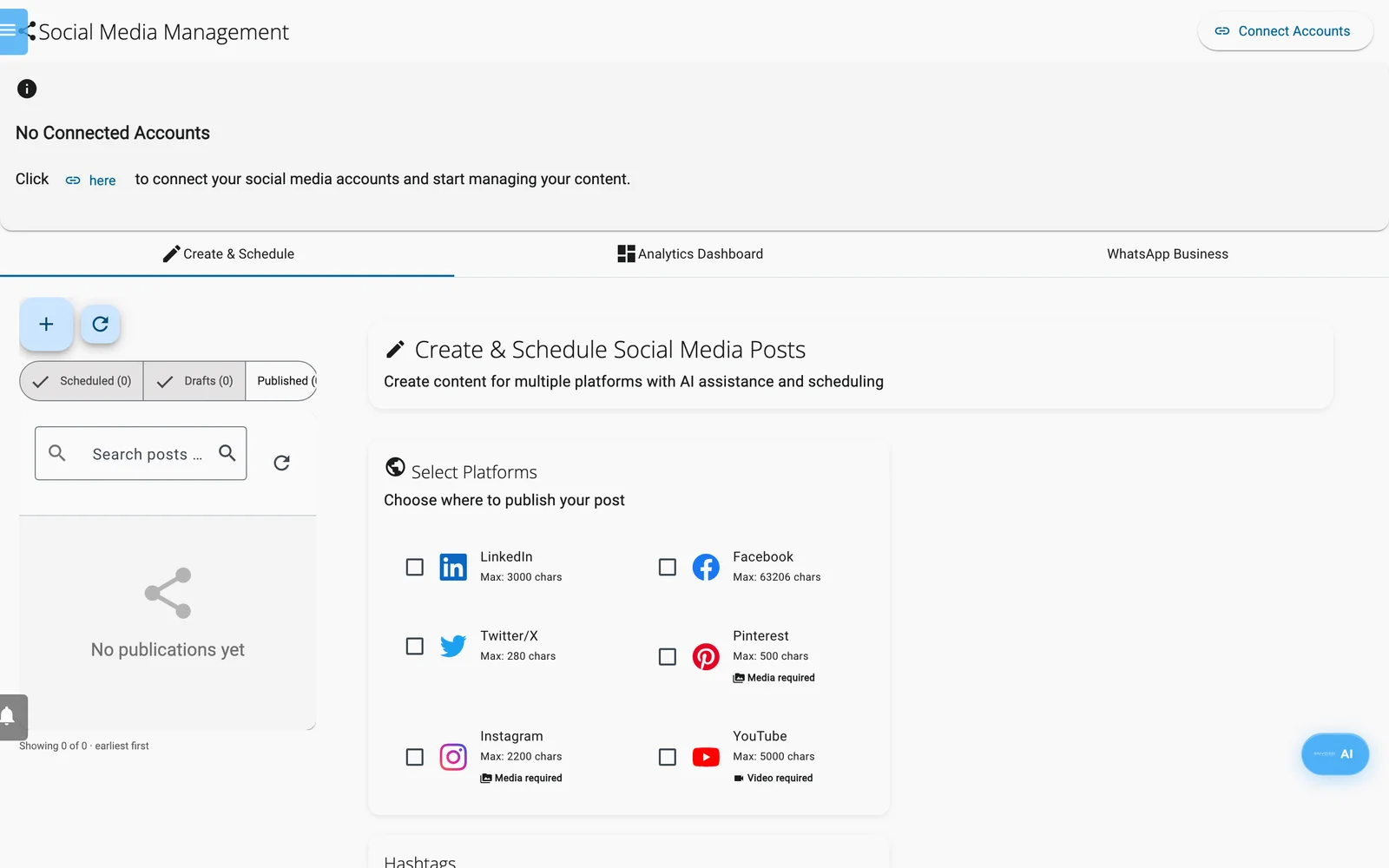
Create & Schedule: choose the platforms for a post, then write and schedule it.
- Open the Create & Schedule tab. To start a new post, select + (New post) above the list on the left.
- Under Select Platforms, tick one or more platforms.
- Under Select Accounts, tick the accounts to post from. A platform with one account is pre-selected.
- Under Media & Content, Add Image, Add Video and Browse All Media offer only Enydea's own icons and background pictures. You cannot upload or pick your own picture or video here; see Post with the AI Assistant below.
- Write the text in Post Content, or select Generate AI Content to get a draft for the chosen platforms. Existing text is used as context. Edit the result.
- Optional: select AI Hashtags or a suggested hashtag, or add an Emoji.
- Check the preview on the right. It shows the post as each network shows it in its feed, with a character count, and updates as you type.
- To publish now, select Post Now. It is queued and goes out within a minute.
- To publish later, tick Schedule for later, set Schedule Date and Schedule Time, and select Schedule Post. If the time has passed, the form says so and the button stays disabled. Set Best Time fills in a time from a fixed rule, for example LinkedIn on a Tuesday to Thursday at 09:00. It does not analyse your audience.
- To keep a post for later, select an account and then Save Draft. The draft is stored in Enydea and appears under Drafts, also on other devices. Nothing is published.
Platform limits
If you pick several platforms, the shortest limit applies to the text. The form blocks the post until the media rules are met. A post goes out with at most one picture or one video; extra pictures are not sent.
| Platform | Characters | Media |
|---|---|---|
| 3,000 | Optional. Up to 9 images and 1 video | |
| 63,206 | Optional. Up to 10 images and 1 video | |
| Twitter/X | 280 | Optional. Up to 4 images and 1 video |
| 500 | Required. 1 image and 1 video at most | |
| 2,200 | Required. Up to 10 images and 1 video | |
| YouTube | 5,000 | Video required |
Manage existing posts
The list on the left holds every post of the selected relation, earliest first, undated drafts last.
- The toggles Scheduled, Drafts and Published show counts and choose what is listed; the first two are on when the page opens. A post Enydea could not send shows Failed under Scheduled.
- Search posts by text, account or status... filters the list. Refresh reloads it.
- Select a row to open the post: "Editing a draft" or "Editing a scheduled post". Change it, then select Save & Schedule or Publish Now. The stored post is changed, not copied. Close leaves without saving. If its account is no longer connected, Enydea asks you to pick one.
- A published post opens read-only. Select Copy to new post to reuse it.
- Row icons: Publish now asks you to confirm, then queues the post. Copy to a new post starts a new post with the same text, account and media.
- The list does not show why a post Failed. Enydea retries it about 15 minutes later. Check the account in Manage Connected Accounts, then use Publish now.
Post with the AI Assistant
The AI Assistant, and Claude or ChatGPT through the connector, can create posts with your own picture or video when you give it the file's address (Copy URL in Files). It makes a draft, or a scheduled post when you give a future date and time. It does not schedule a second post within 6 hours of another one on the same account or company page unless you ask for both. Its posts appear in this list and can be edited here. See Tutorial: Post a video on LinkedIn.
- A post goes out as your profile or as a company page you added. A connection that needs a new sign-in is not offered under Select Accounts.
- Enydea waits up to 5 minutes for LinkedIn to process a video before it publishes. Videos over 200 MB are not sent. A post with a video and a picture goes out with the video.
- Pictures that are not JPEG, PNG or GIF, such as WebP, are converted to JPEG.
Things to know
Warning: The Recurring list and Dynamic Content option are on the form, but the repeat interval and the data URL are not saved with the post. A post is published once. To post regularly, schedule each post yourself.
- Select Accounts lists your LinkedIn profiles and company pages, and your Facebook, Twitter/X and Pinterest accounts. Instagram and YouTube accounts do not appear there, so Enydea does not publish to Instagram or YouTube.
- Pinterest needs a board to create a Pin. Neither the form nor the AI Assistant can set one, so Pinterest posts fail.
- If media cannot be attached on X, the post is sent as text only.
- Text you type is kept in your browser as you write (Draft saved). Save Draft stores a post in Enydea.
Analytics Dashboard
- Pick a Time Range: Last 7 days, Last 30 days, Last 3 months or Last year.
- Read Total Followers, Avg Engagement, Total Posts, Total Impressions and the charts Engagement Rate, Followers Growth and Posts Published.
- Open a platform under Platform Details for followers, engagement, posts, impressions, clicks and CTR.
- Refresh reloads, Export downloads a CSV file, and Generate AI Insights writes recommendations.
The figures are what each platform last reported. The View on and Detailed Analytics buttons do nothing.
WhatsApp Business
Connect a number
- Open the WhatsApp Business tab, select Connect WhatsApp Business, then Connect with Meta.
- In the Meta window, log in to your Meta or Facebook Business account, select or create a WhatsApp Business Account, and add or verify a phone number.
- The number appears under Connected Phone Numbers.
The icons next to a number do not change anything on Meta. The disconnect icon only hides the number until you reload.
Templates
WhatsApp delivers only approved templates to people who have not written to you in the last 24 hours.
- Select Templates Manager, then open Create Template.
- Enter a Template Name (lowercase letters, numbers and underscores), Language and Category (Utility, Marketing or Authentication).
- Optionally choose a Header Type. Write the Message Content (up to 1024 characters, variables as
{{1}}) and optional Footer Text. - Select Submit for Approval. Enydea sends the template to Meta and reports the result: submitted, rejected with Meta's reason, or saved but not submitted.
Statuses are Approved, Pending and Rejected. Meta decides later, so select Refresh from Meta to re-read them. You cannot delete an approved template.
Chat panel
The chat panel lists WhatsApp conversations stored for the relation. You can send a text message or an approved template. Text is only delivered inside the 24-hour window. Media shows "coming soon". The screen has no form to start a chat with a new number and no fields for template variables, and the WhatsApp Number list shows account ids.
Messages that customers send to your number arrive in Chats, if WhatsApp is enabled there. Only text messages are picked up. See Chat widget.