
AI Assistant and AI Agents: ask, act and schedule tasks
What it does
Enydea has two AI features.
- The AI Assistant is a chat panel. Select the AI button at the bottom right of the screen. The panel is called Enydea AI and carries a BETA badge. It does not appear on the mobile app screens.
- AI Agents in the sidebar runs AI tasks on a schedule, for example a weekly summary of overdue CRM tasks.
Note: The AI Assistant panel and the AI Agents screen are English only, also in the Dutch, German and French app.
Before you start
- Sign in. The assistant works with the account and company you are signed in to.
- Some requests need other parts of Enydea to be set up, for example a connected mailbox, Google Ads or a sales system.
- Each scheduled agent run counts as AI usage. See Settings -> Account -> Plan & Usage and Pricing.
Use the assistant
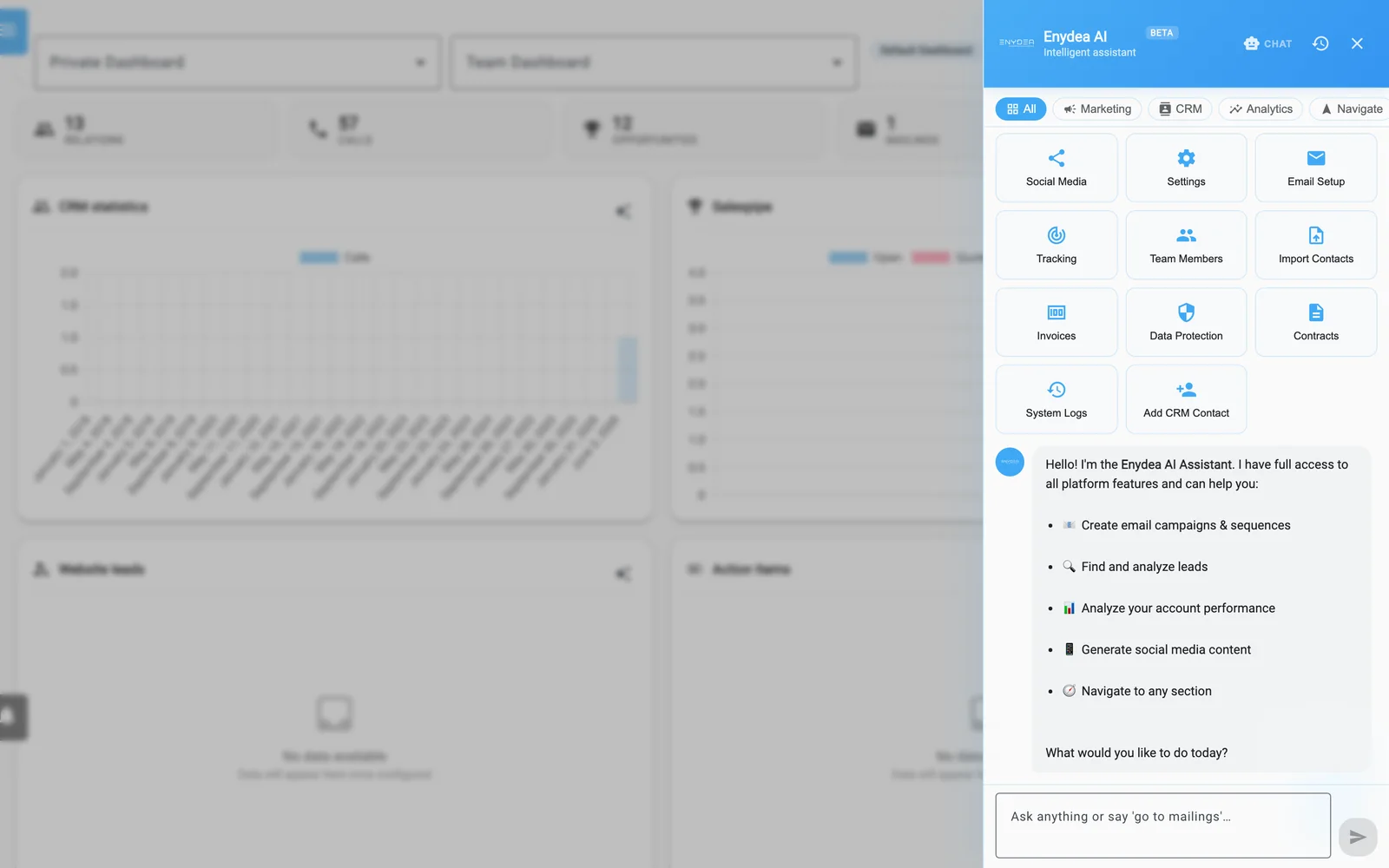
The AI assistant panel, opened from the AI button at the bottom right of any screen.
- Select AI.
- Type a question or a request and press Enter. Shift+Enter starts a new line.
- Or pick a quick action. The chips All, Marketing, CRM, Analytics and Navigate filter the tiles. Tiles such as Campaign, LinkedIn Post, Find Leads, Follow-up Sequence, Analyze Account and Add CRM Contact start a conversation. Tiles such as Dashboard, Mailings and Social Media open that page.
- Select the clock icon (Chat history) to see Recent conversations. Open one to continue, or delete it. The add-comment icon (New conversation) starts fresh.
The Settings tiles, such as Email Setup and Tracking, open Settings. Check the tab that opens and select the one you need.
Chat or agent mode
The button in the panel header switches between CHAT and AGENT.
- CHAT answers questions, opens pages when you say things like "go to mailings", and proposes actions as cards.
- AGENT runs a multi-step task itself, up to 10 steps, and reports back. The panel says it can find leads and decision-maker emails and create outreach drafts. It can also check Google Ads spend, prepare a campaign pause or budget change for your approval, check mailing open rates, schedule calendar events and analyse website traffic.
In CHAT, a clear multi-step request is sent to the agent for you, and the panel tells you so.
Only AGENT:
- is given the current date and time (UTC and Amsterdam), so "tomorrow" becomes a real date. Give times with a zone, for example 09:00 UTC;
- is told to follow your company's Brand kit when it writes marketing content;
- can use the tools a company admin connected under MCP servers.
Each AGENT message starts a new run that does not see your earlier messages. Write each request in full.
Action cards and the confirmation click
When the assistant wants to do something, it shows a card with a label, a description and often a preview. For these cards nothing happens until you select Confirm. Skip dismisses the card.
| Card | What happens after Confirm |
|---|---|
| Create a mailing | A draft mailing is created. You review it in Mailings before sending. |
| Follow-up sequence | Follow-up emails are created in the campaign sequence. |
| Start a lead search | A LeadFinder search runs in the background. It finds companies only, not emails. |
| Read a URL | The assistant reads the page to learn about your product. |
| Create an action item | An item is added to Action Items. |
| Approve: (an agent action) | The action the agent prepared runs exactly as the card shows it. |
Cards that open a page, analyse your account or write social post text have no Confirm. Social post text is shown in the chat. Nothing is posted. A finished card shows Done. After an agent run that created outreach drafts, a card opens Action Items so you can review them.
Actions the agent holds for your approval
The agent never sends, publishes, spends or books anything by itself, and it cannot approve such an action itself. When its task needs one, the run ends with an Approve: card that shows the exact action, for example the campaign and its new budget. Confirm carries it out as shown. Skip discards it. You do not need to send another message.
This covers emailing a quote, a follow-up or a mailing list; scheduling a campaign; sending from your Office 365 mailbox; a test email to someone else; publishing a landing page or a social post; WhatsApp messages; changing or launching a Google Ads campaign; calendar events with attendees; inbound mail routes; the send gate; brand kit changes; new scheduled tasks; mailbox checks of more than 25 addresses; and MCP server tools set to Ask to confirm.
A card can be confirmed for 3 days, and only by the person whose run prepared it. Cards from scheduled tasks, and from tasks Claude or ChatGPT handed to the agent, appear when you open AI.
Warning: Scheduling a social post for a later date is not held: the post goes out by itself. Check Social Media for scheduled posts. The agent refuses to schedule a social post within six hours of another scheduled post on the same account and page, unless you ask for both.
Context
The assistant knows your account, your company and your language. It does not know which page you are on. Two buttons pass context for you: Ask AI about this widget on a dashboard widget, and Ask AI about this page on a landing page. They open the panel and send a message with the details.
The panel opens with a greeting that claims access to all platform features. That is broader than what it can do. It is limited to the cards above and the agent's tools. Use the screens for everything else.
AI Agents: scheduled tasks
Open AI Agents in the sidebar. The page is called AI Agent Tasks.
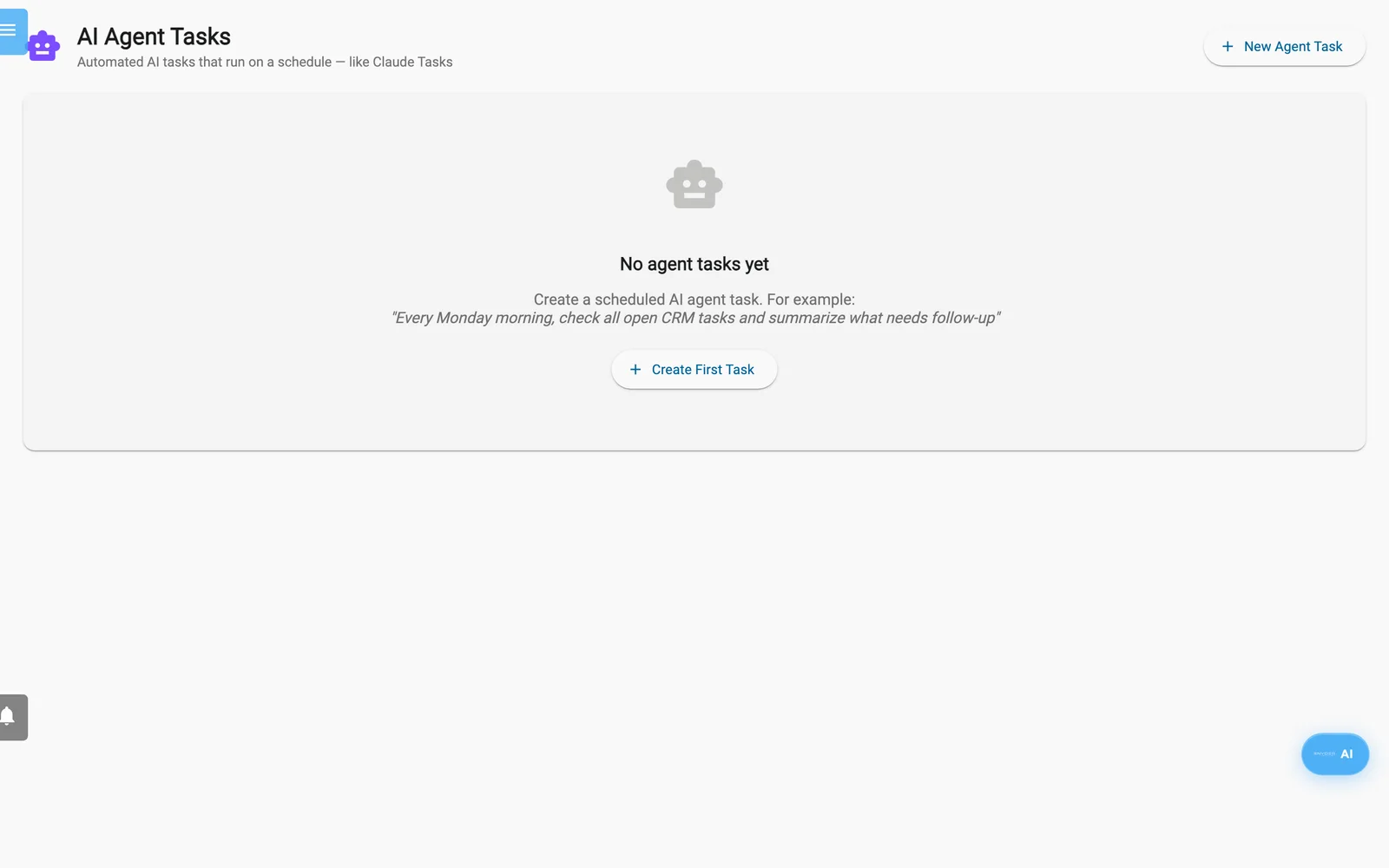
AI Agent Tasks with no tasks yet.
- Select New Agent Task (or Create First Task).
- Enter a Task name (at least 3 characters) and an optional Description.
- Write the Task prompt in plain language (at least 10 characters). The agent uses CRM, email, calendar and file tools. The Examples buttons fill in a prompt for you.
- Choose a Schedule: Manual only, Every hour, Daily, Weekly or Monthly (1st of month).
- For daily, weekly and monthly tasks, set Hour (0–23). For weekly tasks, set Day of week.
- Set Max AI steps (2–12). It limits how deep the agent goes.
- Leave the toggle on to run on schedule, or switch it off for manual runs only. Select Create task.
The hour is in UTC, not your local time zone.
Run and review
- Select the play icon (Run now) to run a task at once. The same action is in the three-dot menu, with Edit and Delete. Delete asks you to confirm.
- The switch on each task enables or disables it. The chip shows never run or the last result. Next: shows the next run.
- Select a task to see its Task prompt and Run history: the last 20 runs with time, number of steps, duration and the answer or error.
Limits
- You only see the tasks you created. Colleagues in your company do not see them.
- A scheduled run carries out nothing that needs your approval. It holds those actions, and they appear as Approve: cards the next time you open AI. Write prompts that ask for summaries, drafts and tasks. Outreach drafts wait in Action Items for you to send.
- Check Run history after the first runs to see what the agent actually did.
- Scheduled runs work like AGENT mode, MCP server tools included. A tool set to Ask to confirm is held for your approval like any other such action; set it to Off if a task must never use it.
Related
See Action Items for drafts and tasks the agent creates, Google Ads and Advertising for campaign controls, and Connect AI assistants to use Claude or ChatGPT with your Enydea data.