
LeadFinder: find and qualify B2B companies
What LeadFinder does
LeadFinder finds companies that could buy from you and brings the good ones into your CRM. It works in three steps, shown at the top of the Leadfinder screen: Research (AI market analysis), Lead Sources (where to look) and Companies & Contacts (what it found).
Note: The Leadfinder screen stays in English in the Dutch, German and French app.
Before you start
- Fill in your Business Profile: Settings -> Account, scroll to Business Profile, then Save Business Profile. Research and discovery read it. The Setup Wizard can fill it in.
- LeadFinder stores its searches under the relation shown in Current Account in the sidebar. A new account starts with a relation named after your company.
- Research, discovery and crawls run in the background and can take minutes.
- Allowances can depend on your plan; see Pricing.
Step 1: Research
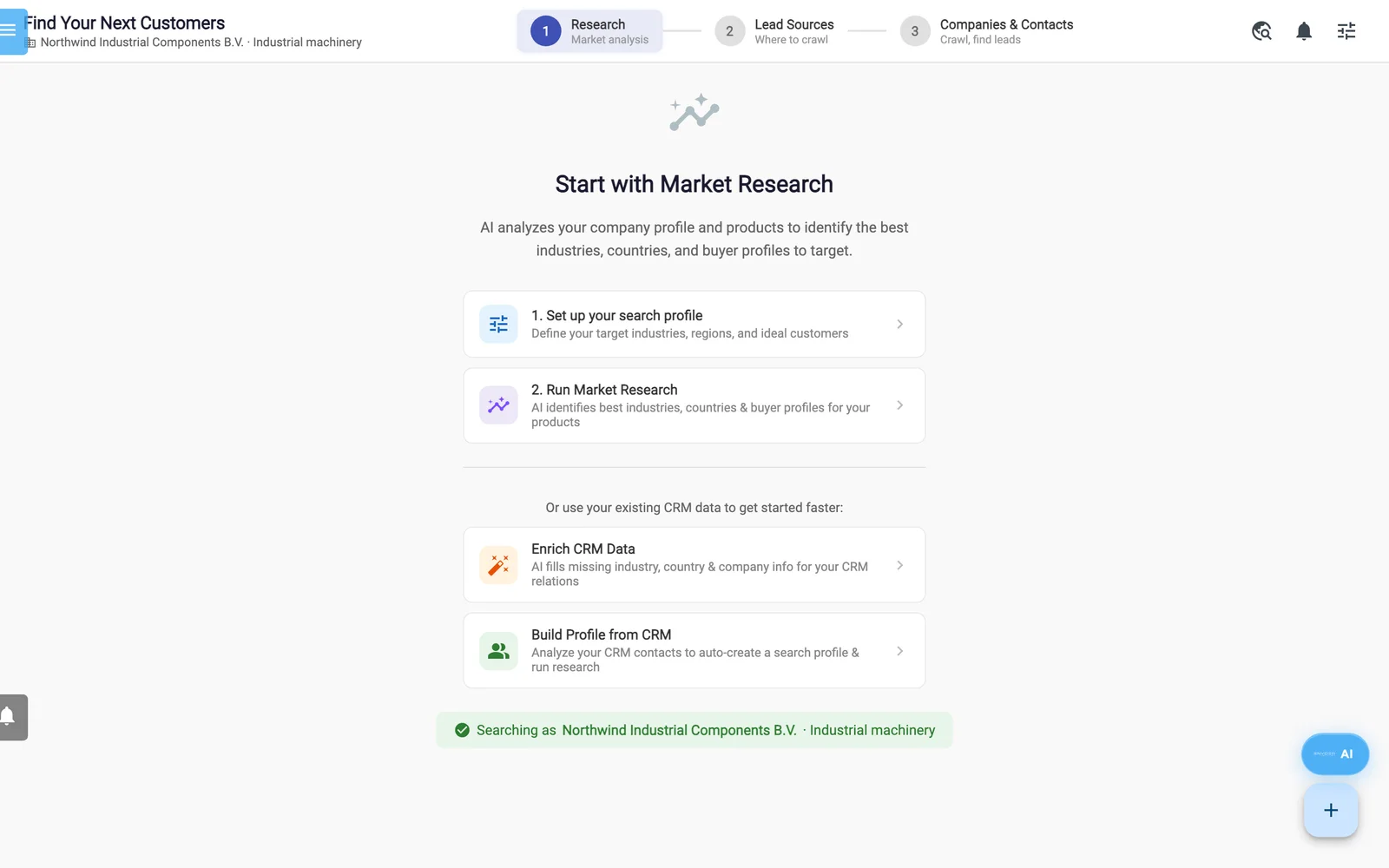
LeadFinder opens on Research. The three steps across the top are Research, Lead Sources and Companies & Contacts.
Set up your search profile
- Click 1. Set up your search profile. Later, use the tune icon at the top right.
- In Lead Search Profile, fill in Profile Name, Industries, Company Size, Preferred Contact Function/Position, Country/Region, Company Type, Keywords, Annual Revenue (min), Annual Revenue (max), Website Technology Stack and Other Notes.
- Optional: click AI Autofill to propose values for empty fields.
- Click Save.
Run market research
- Click 2. Run Market Research (later Re-run).
- In Configure Market Research, review Products, Services, Known Competitors, Example Customers, Target Markets / Regions and Additional Direction / Notes.
- Click Run Market Research. The screen says it takes 1-2 minutes.
The Market Research Results score Top Industries and Top Countries out of 100 and add an Opportunity Matrix, Product-Market Fit, Competitor Insights, Strategy & Actions and Campaign Segments. Industries and countries can list web pages under Evidence and Source Evidence; for the first five countries these include a search in the country's business language. Buttons under the results:
| Button | What it does |
|---|---|
| Find Lead Sources → | Finds sources from this research and opens Step 2 |
| Apply to Profile | Writes the findings into your company profile and Lead Search Profile |
| Enrich Market Data | Adds Market Size & Growth Potential |
| Enrich CRM | Fills missing industry, country and company details on your relations |
| Re-run, PDF, Delete | Run again, export, delete |
A Campaign Segments card has Add as Tag, which adds a tag such as "Industry | Country" to the tag box in Step 3.
Step 2: Lead Sources
- Click Find Lead Sources →, or in Step 2 click Smart Discovery (uses your company profile) or Find Sources from Research.
- Lead Sources Found lists Crawlable Sources (trade shows, directories, associations, scored out of 100) and Search Strategies (links to Google or LinkedIn searches).
- Click Crawl on a source. The Create new lead Search window opens with that website filled in. Click Run Search.
- Or click Crawl All Sources (n) to crawl every source as one background task. Step 3 opens when it finishes.
- Discover More and Find More from Research add sources. Crawl a URL Manually opens the crawl window with an empty address.
The globe icon in the toolbar (or All URLs) opens Discovered URLs. Enter an address, set Max Depth (1 to 3) and Max URLs (50 to 500), and click Discover. Each page gets a category, lead score and status. Crawl for Leads crawls that page. Queue for Crawling and Skip only change the status label.
Step 3: Companies & Contacts
Recent Searches lists every crawl; click one to see its companies. Saved Searches are reusable website searches you can edit, run (play icon) or delete. Every website search you run is also saved automatically, named "Search" plus the date and time.
Each company card shows location, lead score, website, email and contacts. Click a card for its read-only Company Details; this also ticks or unticks it. Card icons analyse the website for lead indicators (trade shows, associations, partnerships, certifications) or find contacts. Narrow the list with Filter companies (on name or description) and the With Contact Persons, With Website and With Email switches.
Add companies to your CRM
Note: Every search, including Crawl and Crawl All Sources, already saves each company found with its own website as a relation, without tags or a status. A relation that already has exactly that website is overwritten with the crawled name, address, country, phone, email and LinkedIn where the crawl found them. Add selection to Relations then adds these companies' contact persons but not your tags, and Check for Duplicates flags them.
- Optional: click Enrich Emails.
- Optional: click Check for Duplicates, then Deselect Duplicates. On a fresh search this also unticks the companies the search itself saved, so their contact persons are not added.
- In Tags for saved relations, type a tag and press Enter, or click a suggested "+ tag".
- Tick the companies, or click Select All.
- Click Add selection to Relations.
| Button | What it does |
|---|---|
| Add selection to Relations | Saves ticked companies and their contacts as relations. A company that matches an existing relation by name, website or email is not created twice: new contacts go onto the existing relation, and a company with a different address, city or country becomes its subsidiary. Tags apply to new relations and subsidiaries. |
| Enrich Emails | Tooltip: "Find missing email addresses using cost-optimized strategy". Covers every company in the open search: contacts with a name but no email, at companies with a website. A message reports addresses found, the cost, and the method (Extracted, Learned, Common, Hunter). Saving does not enrich, so run it first. |
| Check for Duplicates | Flags Already in CRM (duplicate). The match is broad, so review flagged cards. |
| Find Contacts for Selection | Choose job functions, then Start Contact Search. Adds each ticked company to Relations without a duplicate check and starts a background search. |
| Smart Find Contacts | Adds ticked companies to Relations (without tags), runs an AI search for decision makers and reports a count. |
Note: For contact persons, use Extract Contact Persons on a website search, then Add selection to Relations. Find Contacts for Selection stores pending suggestions and the app has no screen to approve them. Smart Find Contacts does not save the people it finds.
Create new searches
The + button at the bottom right opens Create new lead Search.
- Text / Website Search: describe your ideal customer and click Search. AI proposes industries, countries, sizes, example companies and sources. Remove what does not fit, then click Start Search.
- Search Specific website: crawl one site. Enter Website and Max Pages. Optional: Requires Login, AI-Powered Filters, Extract Contact Persons (website searches only). Click Run Search, or Save Template to keep it without running. Login details are stored with the saved search.
- From Catalog: pick a catalog item and click Find Customers, then Start Search.
More through the AI Assistant
Some LeadFinder work has no button. Ask the AI Assistant in AGENT mode, or Claude or ChatGPT through the connector. Apart from the directory crawl, these jobs do not appear in the LeadFinder Tasks strip; ask the assistant for their status.
| Ask the assistant to | What happens |
|---|---|
| Crawl a trade show's exhibitor list (its address and the show name) | A background job in a real browser that finds the exhibitor profiles itself. It can take up to an hour and uses a login you saved with Requires Login for that site. Exhibitors wait as prospects until you ask the assistant to promote them. Each then becomes a relation with status lead, the show name in Source and as a tag, cat: category tags and its listed contacts. An existing relation (same website, else same name) only gets its empty fields filled and the tags. |
| Crawl a directory page | Saves the companies found straight into Relations, also those without a website. The search is kept under a relation named "Leadfinder Source (AI Agent)", not under Recent Searches. |
| Find decision makers on the web for one relation (name the roles) | Saves people found in public profiles as contact persons, with the role in Function/Position. An address not found published is built from the company's address pattern and is a guess; without a Website there is none. |
| Find email addresses with Hunter.io for one relation | Saves the people found for the relation's domain as contact persons. Recruitment, no-reply, press, privacy, private and generic inboxes such as info@ are skipped. |
| Find decision makers for many relations (by tag or country) | A background job over relations with a website and no contact yet: the company website, Hunter.io (management and buying roles) and a web search for the roles you name. The web search keeps only purchasing, plant, production, operations, engineering, maintenance, project, quality, R&D and laboratory titles unless you ask to switch that filter off. |
| Recover missing job titles | Fills Function/Position for contact persons with a first and last name but no title, by searching the person with the company name. |
For buying signals such as new plants or delayed projects in news and stock-exchange filings, see Market signals.
Tasks and notifications
The LeadFinder Tasks strip shows each background job's status (Queued, Running, Completed, Failed), progress and last message. Retry a failed task with its refresh icon.
The bell in the toolbar opens Notifications. Turn them on or off with Leadfinder notifications under Settings -> Account -> Notification Preferences. After research, Google Ads in the toolbar prepares a campaign suggestion; see Google Ads and advertising.